How to join the chat server
The community chat runs on Matrix, an open chat network, using the free Element app. It works a lot like Discord, but on my own server, so you need a new account here (your Discord account won't work).
Create your account in a web browser
- Open chat.kaneda.tv in your browser (computer or phone).
- On a phone, if it offers to open the app, choose Continue in browser.
- Click Create account, then pick a username and a password.
-
When asked for the registration code, enter:
KANEDA - Write down your username and password somewhere safe.
Do this step in a browser. The Element mobile app can't create an account on my server, it can only sign in to one you already have.
You're in!
- You join the community rooms automatically.
- The link to my cloud server is in the Access to content room.
- The cloud password is in my pinned post Development Update on Fanbox (supporters only). It's the line of letters and numbers right under the title:
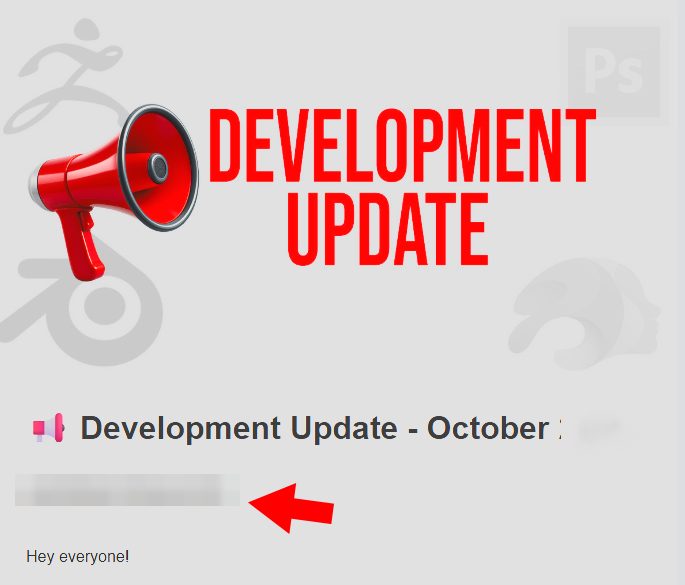
The videos are not free. The chat is free, but the cloud password is only visible to my Fanbox supporters. Every tier (from 1500 JPY / month) gives access to all my videos.
Asked to set up a "recovery key"? Element may ask you to save a recovery key the first time. It only protects private messages. You can save it somewhere safe, or skip it.
Optional: use the phone app
- Install Element from your app store (element.io/download).
- On the sign-in screen, tap Change account provider (or Edit next to the server name).
-
Enter the server:
chat.kaneda.tv - Sign in with the username and password from step 1.
The app opens but doesn't find my server? By default the app connects to matrix.org. It only finds my server after you change the account provider as shown above.
Common questions
The registration code doesn't work.
Make sure it's typed exactly, in capital letters: KANEDA. If it still fails, email me.
Can I use my existing Matrix account (from matrix.org or elsewhere)?
Not for now. The server is private, so you need an account on chat.kaneda.tv.
I forgot my password.
Email me your username and I'll reset it for you.
Still stuck?
Email [email protected] and tell me which step you're on. A screenshot helps a lot.